DOS gaming on Linux with DOSBox
I didn’t actually live through the MS-DOS era. In fact, I wasn’t even born yet when people were manually juggling memory managers or booting games from 3.5-inch floppy disks.
My introduction to DOS didn’t come from firsthand nostalgia; it came from my dad. He has mentioned to me multiple times that he was a certified DOS operator. Yeah, that was a thing in Honduras. Hearing about an era where using a computer meant knowing your way around a command line stuck with me, especially since spending time in a terminal is second nature to me on Linux.
Naturally, that curiosity eventually led me to explore DOS gaming. With DOSBox, running these games on Linux is remarkably easy.
Whether I’m on my big laptop PC running Debian or on my daily driver running Arch Linux (yes, I use Arch, btw), DOSBox is a regular part of my setup.
Playing on “babymega”
A lot of my DOS gaming happens on my ASUS Chromebook, nicknamed babymega. It runs Linux with Coreboot, and because it’s such a small, lightweight machine, playing DOS games on it feels oddly fitting.
Its tiny size gives it the vibe of a retro ultraportable or subnotebook, reminiscent of something like the old Toshiba Libretto, or the early Asus Eee PC netbooks. Of course, a modern Chromebook isn’t actually anything like those old computers under the hood, but having a compact little machine in your hands to poke around a command prompt and launch classic games just feels right.

By Lorenzo Breda - Own work, CC BY-SA 3.0, Link
A completely serious warning about game acquisition
Before looking at the setup, we should probably address where the games come from:
Downloading DOS games from unofficial sources online is, of course, terrible and completely unacceptable. You should never, under any circumstances, browse abandonware archives to download games that haven’t been sold commercially since 1995.
The only proper, responsible way is to track down the original 1993 floppy disks in their giant cardboard boxes at a flea market, buy a vintage drive, and pray the magnetic disk still reads. You definitely shouldn’t just grab a tiny zip file from the internet.
Installing DOSBox
The setup on Linux is as simple as it gets.
On Debian:
sudo apt update && sudo apt install dosbox
On Arch Linux (btw):
sudo pacman -S dosbox
When you launch DOSBox for the first time, it automatically creates a configuration file in your home directory inside ~/.dosbox/ (the exact filename usually includes the version number, like dosbox-<version>.conf).
You don’t have to touch 90% of the settings in that file. A couple of simple adjustments to visuals, processor speed, and startup commands are all you need.
The few settings I tweak
After opening that configuration file in a text editor, here is what I change:
1. Visual settings
By default, DOSBox can make low-resolution games look a bit blurry or stretched on modern displays. Under [sdl] and [render], I tweak these options:
[sdl]
fullscreen=true
output=opengl

[render]
scaler=normal2x
output=opengl: Tells DOSBox to use OpenGL to draw the window, which runs smoothly on Linux graphics drivers without screen stutter.fullscreen=true: Automatically launches the game in fullscreen mode so you don’t have desktop distractions.scaler=normal2x: Instead of blurring the image to fill the screen, this simply doubles the pixel size cleanly. It keeps the original pixel art sharp and crisp.
2. Emulating a Pentium processor
Some games from the mid-to-late 90s were designed for Pentium PCs and can feel sluggish if DOSBox defaults to emulating an older 386 or 486 chip. Under [cpu], I set:
[cpu]
core=dynamic
cputype=pentium
cycles=35000
core=dynamic: Lets DOSBox run the emulated code much faster on modern processors.cputype=pentium: Tells the game it’s running on a Pentium processor.cycles=35000: “Cycles” in DOSBox control how fast the virtual CPU runs. Setting a fixed value around 35,000 gives 90s games enough speed to run smoothly without making older games fly by unplayably fast (This happens a lot on strategy games like XCOM or Warcraft II).
3. Startup commands ([autoexec])
Every time you open DOSBox, you have to tell it where your game files are located on your computer using the mount command. Typing that manually every single time gets old very quickly.
At the very bottom of the config file, there is an [autoexec] section that automatically runs whatever commands you put there whenever DOSBox starts:
[autoexec]
mount C:~/Nextcloud/DOSGAMES
C:
cls
In my case, I’m using my Nextcloud folder to store my DOS games, so with those three lines:
- DOSBox mounts my games folder as virtual drive
C:. - It switches directly into
C:. - It clears the screen (
cls) so I’m greeted by a clean command prompt.

Wrapping up
Once configured, launching DOSBox takes you straight to the prompt, ready to start playing:
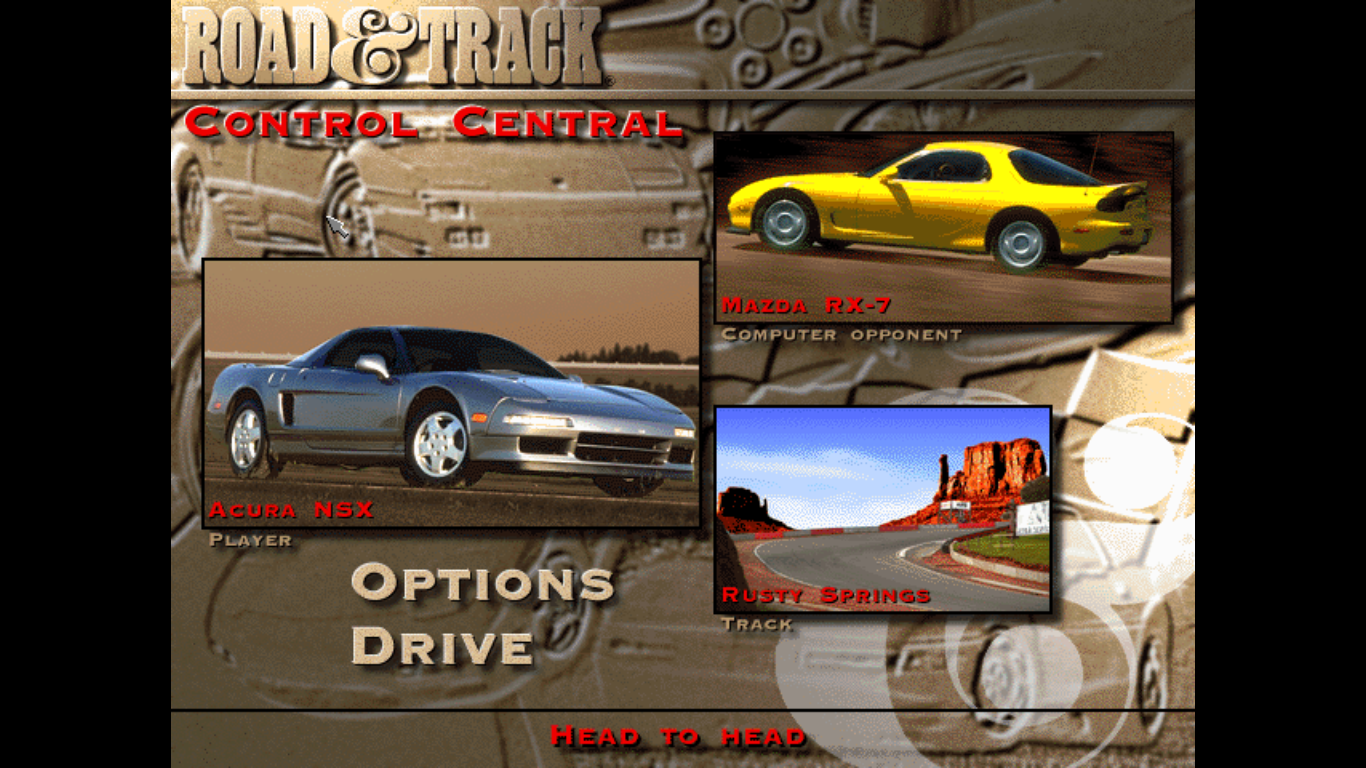
I might not have been around when my dad was earning his DOS certification, but discovering these games on my own has been a lot of fun. Even on a modest Linux setup, like my 11 inch laptop, it proves that great games and simple computing never really go out of style.
Thanks for reading!
Have thoughts or feedback?
Join the discussion on Mastodon


